How to Share a Facebook Post to Instagram in 2026
Share a Facebook post, Reel or Story to Instagram in the Facebook app, turn on automatic sharing in Accounts Center, or post from a Page in Business Suite.
 Evgenii Plugarev
Published
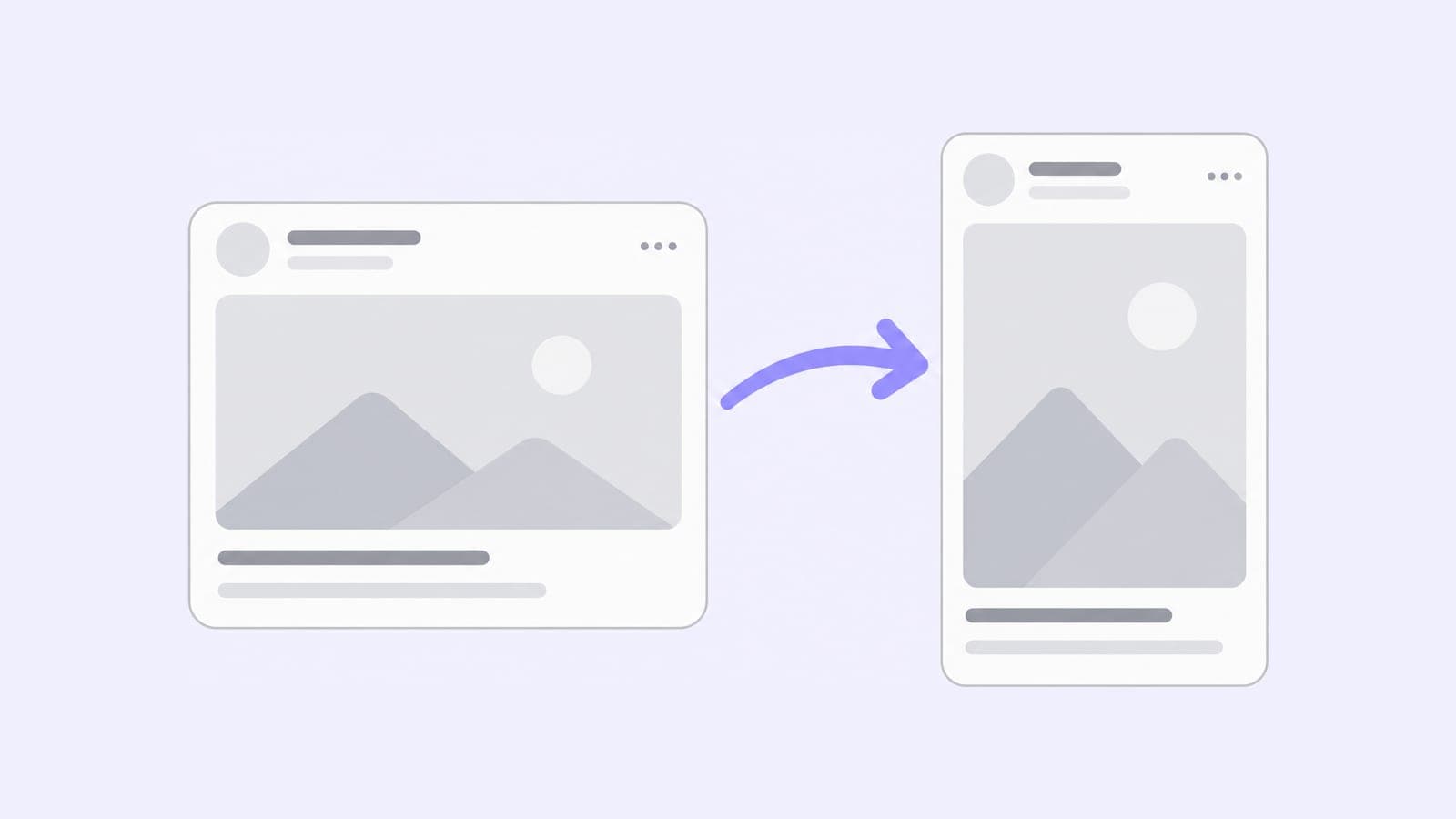
To share a Facebook post to Instagram, open the Facebook app, tap What's on your mind?, add a photo or video, tap the Instagram button under your name to turn sharing on, and tap Post. Your Facebook and Instagram accounts need to be in the same Accounts Center. Sharing works in the Facebook app for iPhone and Android, not on the web, and only for posts with a photo or video.
How to share a Facebook post to Instagram
You can share a Facebook post to Instagram only while you create it, by turning on sharing in the Facebook app for iPhone or Android.
- Add both accounts to one Accounts Center. In the Facebook app, go to Menu → Settings & privacy → Settings → Accounts Center and add your Instagram account if it isn't there.
- Create the post. Tap What's on your mind? in your Feed and add a photo or video.
- Turn on sharing. Tap the Instagram button under your name. It shows whether the post will go to Instagram or sharing is Off. Turn sharing on for this post and go back.
- Tap Post. The post appears on your Instagram profile, with your Instagram privacy settings (Facebook Help).
How to share Facebook posts to Instagram automatically
To send every eligible post to Instagram, tap the Instagram button while creating a post, open Accounts Center and turn on Your Facebook posts. You can also set it up from Menu → Settings & privacy → Settings → Accounts Center → Sharing across profiles: pick your Facebook profile and the Instagram account it shares to.
After that, each Facebook post with a photo or video also goes to Instagram until you turn the toggle off.
How to share a Facebook Reel to Instagram
A Reel can go to Instagram only while you create it, in the Facebook app for iPhone or Android, and to one Instagram account:
- Create the Reel and tap Next.
- Tap Instagram, turn on the toggle next to your account and tap Close.
- Tap Share now.
The Reel appears on Instagram as a reel. The same screen lets you share future Reels automatically. To choose which Instagram account gets them, go to Accounts Center → Sharing across profiles (Facebook Help).
How to share a Facebook story to Instagram
A story can go to Instagram while you create it, from the story's privacy settings in the Facebook app:
- Tap Create story and make your story.
- Tap Settings, then Privacy, and turn on Share to Instagram for your account.
- Under Set sharing frequency, pick Share always or Share once, then tap Share.
Not every type of story can be shared to Instagram. Like any story, it stays up for 24 hours (Facebook Help).
How to share a Facebook Page post to Instagram in Meta Business Suite
For a Facebook Page, use Meta Business Suite, Meta's free tool for Pages and Instagram professional accounts. Your Instagram account must be a business or creator account connected to the Page; a personal account can't be added.
- In Business Suite, click Create post on the home screen or in Content.
- Under Post to, select your Facebook Page and your Instagram account.
- Add the photo or video. Business Suite allows up to 10 photos in an Instagram post.
- Write the text. You can customize it separately for Facebook and Instagram, and a preview shows both feeds.
- Click Publish, Schedule or Finish later (Meta Business Help).
When a Page and an Instagram account are connected, Business Suite publishes posts, Stories and Reels to both by default; untick the one you don't need (Meta Business Help). Page posts can be scheduled from 20 minutes to 29 days ahead (Meta Business Help).
Why didn't my Facebook post share to Instagram?
When a post can't go to Instagram, the Instagram button shows Off. According to Facebook's help, these posts don't share:
- posts with more than one video or more than 10 photos;
- posts with photos of different sizes;
- photos that are too tall or too wide, though you may be able to crop them;
- posts that use features Instagram doesn't have, such as text-only posts, live videos, shared posts and some creative tools.
Sharing also stops if the two accounts aren't in the same Accounts Center or if you post from the web version of Facebook.
How to share an Instagram post to Facebook
To share an Instagram post to Facebook, turn on the Facebook toggle while you create the post in the Instagram app for iPhone or Android:
- Add a photo or video for a post or reel, then scroll down on the last screen.
- Under Also share on…, turn on the toggle next to Facebook and go back.
- Tap Share.
To share every post, go to Profile → Menu → Accounts Center → Sharing across profiles, choose where to share from and to, and turn on Your Instagram posts (Instagram Help). Sharing to a Facebook Page needs an Instagram professional account and full control of the Page (Instagram Help).
Cross-post from Facebook to Instagram and other networks with Pubblica
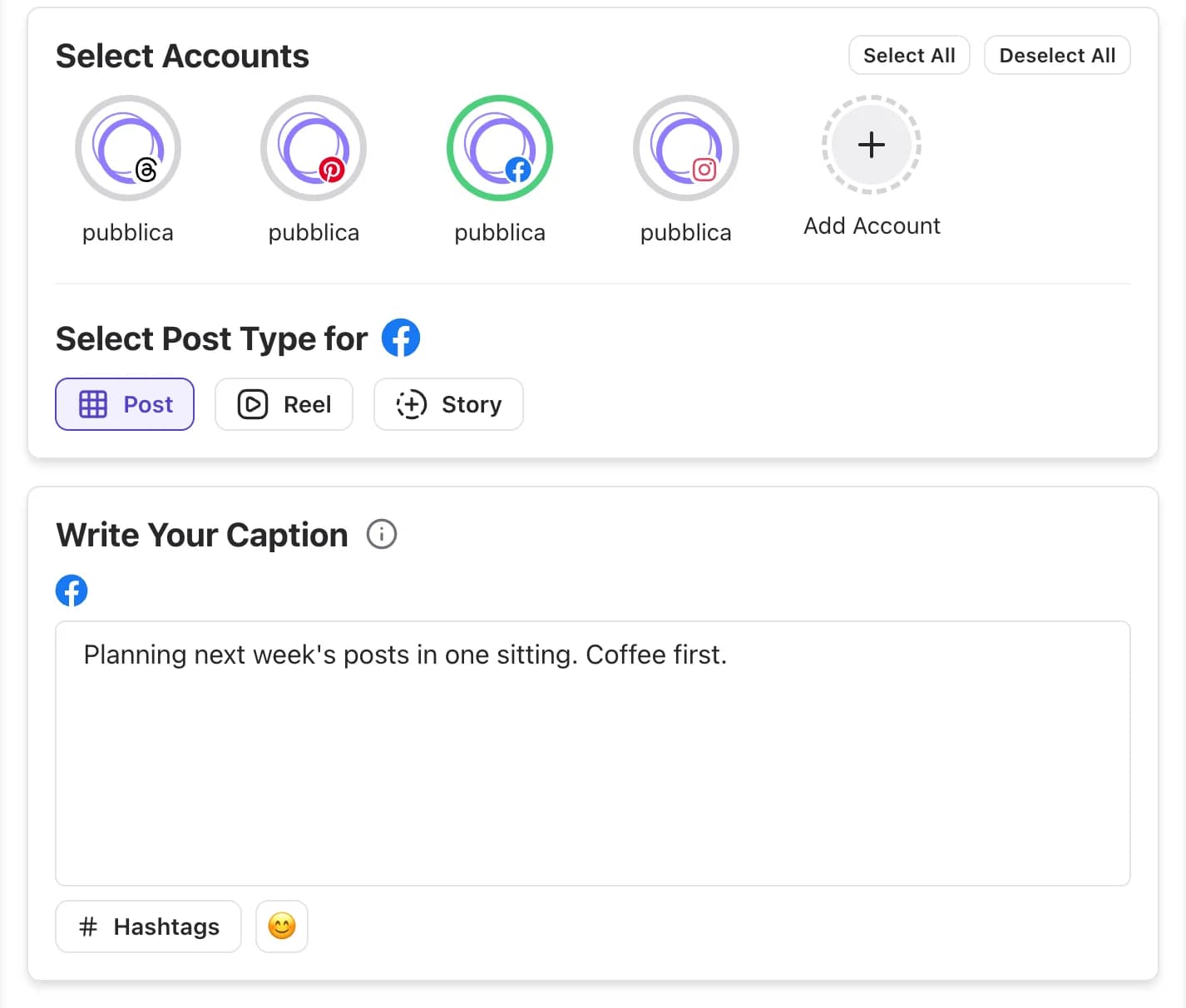
Meta's sharing works between Meta's apps. Pubblica, the scheduler we make, publishes one post to a Facebook Page, an Instagram professional account and your other networks at the same time. It uses the same Post, Reel and Story types on both Meta networks, and you can keep one caption or write one per network. See the Facebook scheduler and the Instagram scheduler for what each supports.
To add TikTok, YouTube, LinkedIn and more to the same post, see how to post on multiple platforms at once, or compare free cross-posting apps.
If you run several Pages and Instagram accounts, see how to manage multiple social media accounts. More on what runs on its own: social media automation.
The Free plan includes 20 posts a month on every network except X, with unlimited accounts and no card. Pro is $20 a month for unlimited posts, with a 7-day free trial.